Acquiring & Payout Manual
This page is the merchant user guide for the Payout (fund disbursement) service on Ksher Merchant Platform.
For the API integration of Payout, see Payout Integration Guide.
Merchant Platform (Thailand): https://merchant.ksher.net/th

1. Payout Function Application Process
Document checklist
| Service type | Required documents |
|---|---|
Payout - Standalone |
|
Acquiring + Payout |
|
| The Payout service accepts corporate (juristic person) merchants only. |
2. Payout Top-Up Process
Before creating payout orders, the Payout balance must be topped up. There are 2 methods.
Method 1: Manual Top-Up
Merchants transfer funds in THB directly to Ksher Payment’s bank account below, then send the payment slip to Ksher by email.
Bank name |
Bangkok Bank |
Account name |
Ksher Payment Co., Ltd. |
Account number |
002-3-70109-7 |
-
Transfer & email notification — after the transfer, send the payment slip to:
Email to
Email subject
[MIDxxx - Merchant Name] Payment slip (THB [amount]) for payout top-up ([Date]) -
Verification & top-up timeline
-
After verifying the payment, Ksher tops up the merchant’s Payout balance within 1-2 working days.
-
Ksher replies to the merchant’s email to confirm the top-up.
-
The top-up process is executed once per day.
-
Method 2: Automatic Top-Up
Available for merchants who use both Acquiring and Payout.
-
The merchant applies for both Acquiring and Payout, and gives consent for Ksher to automatically transfer Acquiring settlement funds to the Payout balance.
-
The system automatically tops up the Payout balance using the daily Acquiring settlement funds. Settlement is processed separately for each payment channel, and the auto top-up occurs at approximately 14:00-18:00 on every working day.
-
Once the top-up for each payment channel is completed, Ksher staff send an email notification to the merchant for confirmation.
3. Payout Function Menu on Merchant Platform
All Payout menus are under Account Balance on Merchant Platform.
3.1 Balance Management
Check the balance available for payout before creating an order.
Go to Account Balance > Balance management.
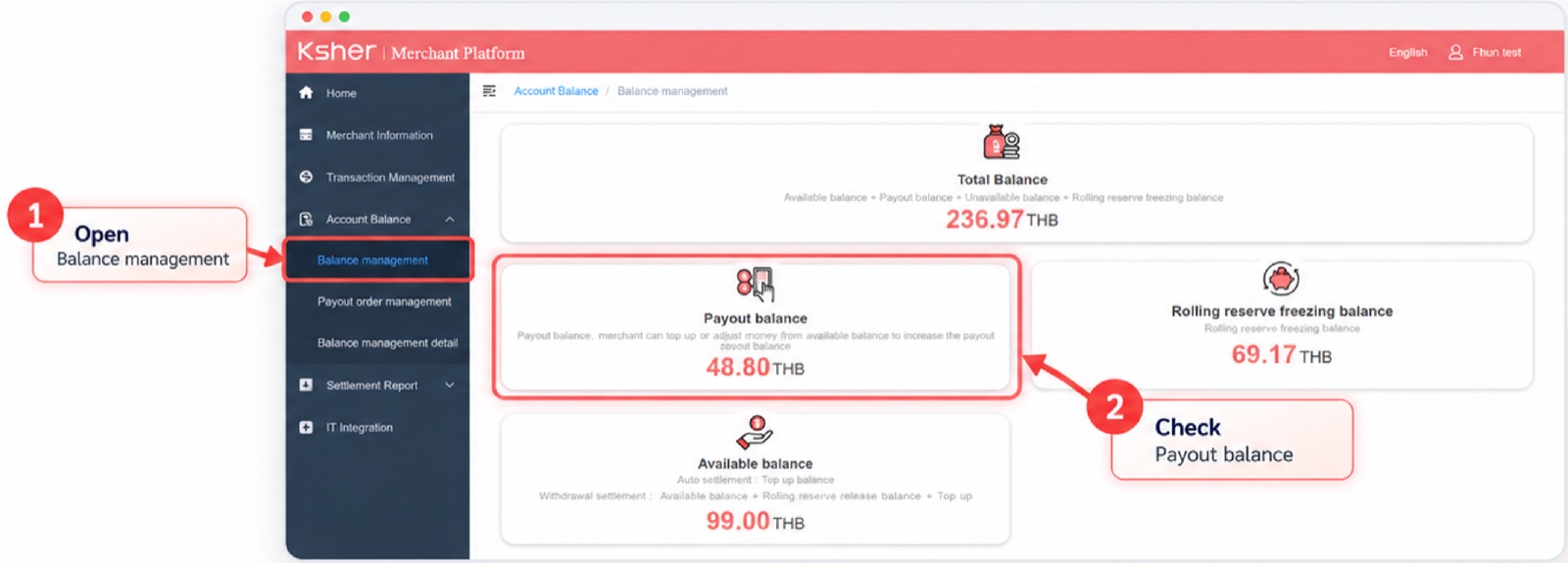
| Balance | Description |
|---|---|
Total Balance |
Combined balance = Available balance + Payout balance + Unavailable balance + Rolling reserve freezing balance |
Payout Balance |
Balance available for payout orders. The merchant can top up, or adjust money from the available balance, to increase the payout balance. |
Rolling Reserve |
Temporarily reserved amount (rolling reserve freezing balance) |
Available Balance |
Balance available for settlement |
3.2 Payout Order Management
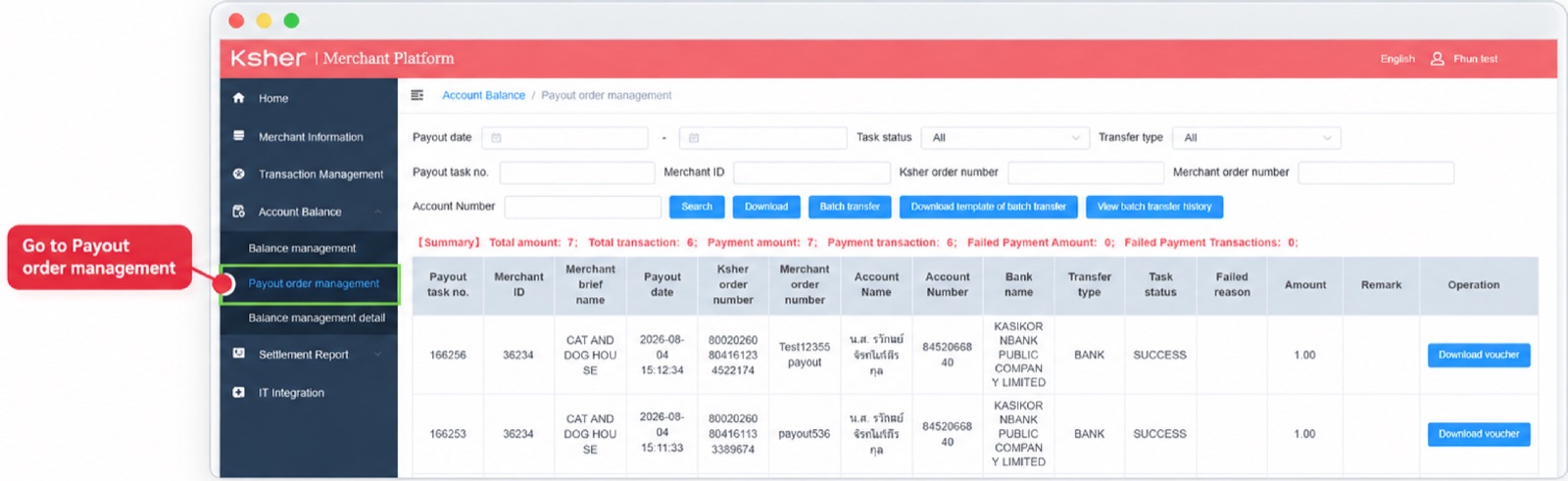
Manage batch transfers and review payout details, including the receiver’s bank account or PromptPay details, transfer amount and transaction status.
Go to Account Balance > Payout order management.
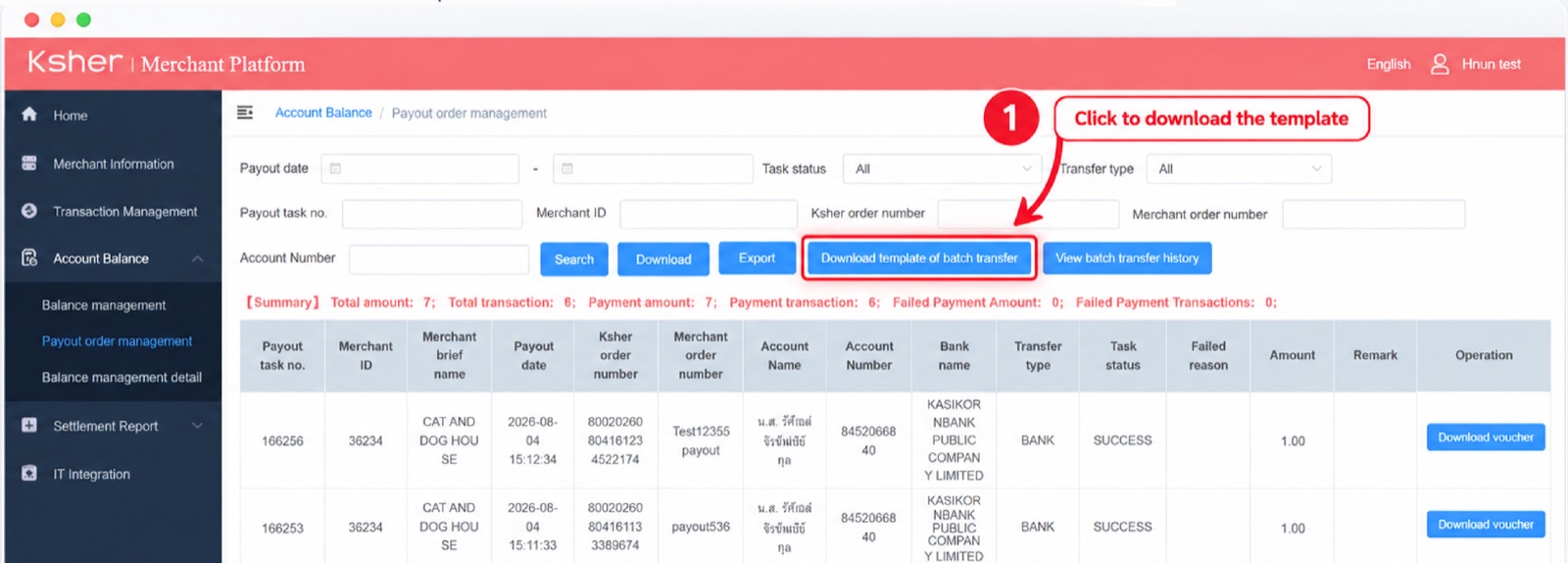
Step 2: Fill in the template
Open the template file and fill in all required information. The Excel file includes examples and guidelines for each field.
| Field | Description |
|---|---|
|
Merchant order no. Must be unique overall. |
|
Order amount in THB, up to two decimal places. |
|
Receiving account type:
|
|
Receiving account number, or PromptPay ID. |
|
Receiving bank code. See Thailand bank codes. |
|
Email address to receive the payment voucher (optional). If provided, the voucher is sent to this address. Only one email address is supported. If left blank, no voucher is sent to the customer. |
| mch_order_no | total_fee | receiver_type | receiver_no | receiver_bank_code | |
|---|---|---|---|---|---|
Test01 |
1.00 |
PROMPTPAY_MSISDN |
1100701819565 |
014 |
| mch_order_no | total_fee | receiver_type | receiver_no | receiver_bank_code | |
|---|---|---|---|---|---|
test05 |
1.00 |
PROMPTPAY_NATID |
1100701819542 |
014 |
| mch_order_no | total_fee | receiver_type | receiver_no | receiver_bank_code | |
|---|---|---|---|---|---|
test00009 |
1.5 |
BANK |
8452066840 |
004 |
|
test00010 |
2.5 |
BANK |
8452066840 |
004 |
Enter receiver_bank_code as text so Excel keeps the leading zeros (for example 004, not 4).
|
| Bank code | Bank name |
|---|---|
002 |
Bangkok Bank Public Company Limited (BBL) |
004 |
Kasikornbank Public Company Limited (KBANK) |
006 |
Krung Thai Bank Public Company Limited (KTB) |
011 |
TMB Bank Public Company Limited (TMB) |
014 |
Siam Commercial Bank Public Company Limited (SCB) |
017 |
Citibank N.A. (CITI) |
020 |
Standard Chartered Bank (Thai) Public Company Limited (SCBT) |
022 |
BANKTHAI Public Company Limited (UOBT) |
024 |
United Overseas Bank (Thai) PCL (UOBT) |
025 |
Bank of Ayudhya Public Company Limited (BAY) |
030 |
Government Saving Bank (GOV) |
033 |
Government Housing Bank (GHB) |
034 |
Bank for Agriculture and Agricultural Cooperatives (AGRI) |
039 |
Mizuho Corporate Bank Limited (MHCB) |
065 |
Thanachart Bank Public Company Limited (TBANK) |
066 |
Islamic Bank of Thailand (ISBT) |
067 |
Tisco Bank Public Company Limited (TISCO) |
069 |
Kiatnakin Bank Public Company Limited (KK) |
070 |
ACL Bank Public Company Limited (ACL) |
071 |
The Thai Credit Retail Bank Public Company Limited (TCRB) |
073 |
Land and Houses Bank Public Company Limited (LHBANK) |
079 |
ANZ Bank (Thai) Public Company Limited (ANZ) |
080 |
Sumitomo Mitsui Trust Bank (Thai) PCL. (SMTB) |
098 |
Small and Medium Enterprise Development Bank of Thailand (SMEB) |
Email notification & payslip
If the merchant fills in the customer’s email address in the template, the customer receives a Payout Transaction Confirmation email with a payslip (PDF attachment) after a successful transfer.
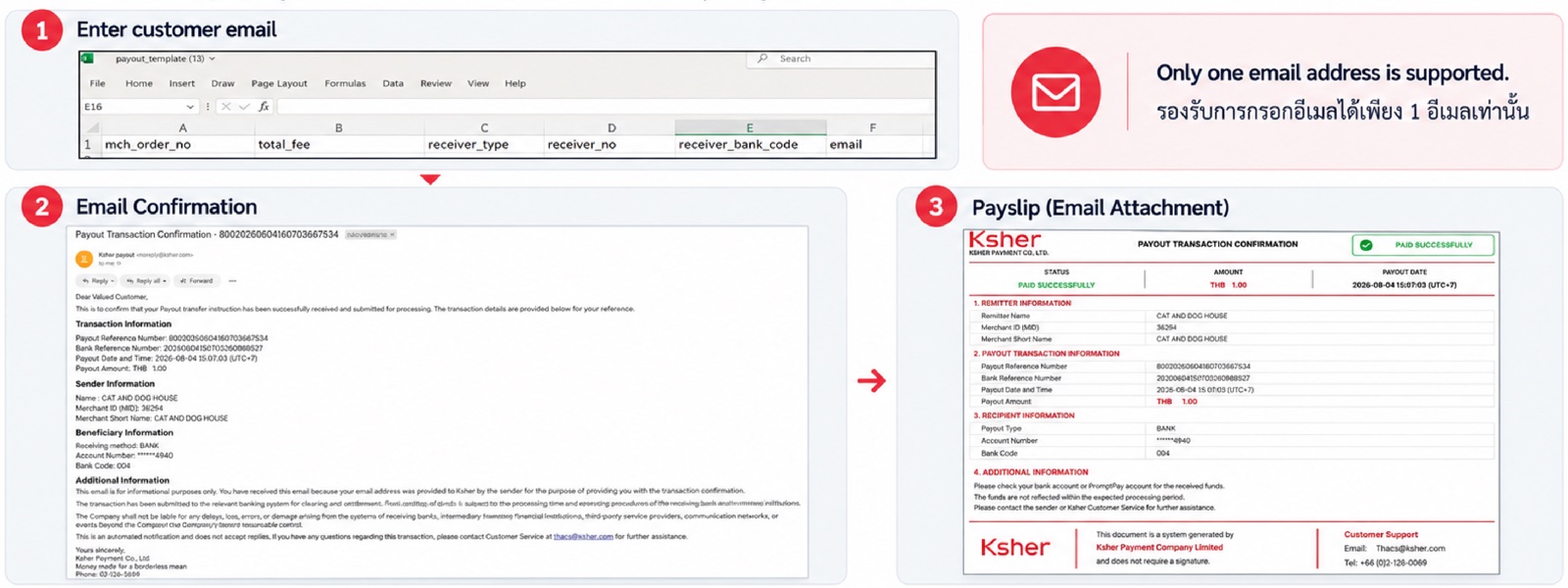
If you do not want the customer to receive the email and payslip automatically, leave the email field blank.
|
Step 3: Upload & confirm the batch transfer
Upload the completed template to process the payout.
-
Click Batch transfer.
-
Click Upload and upload the completed template.
-
Verify the total number of transactions and total amount.
-
Enter your password and click Yes.
Once confirmed, the payout is processed automatically and the end user receives the funds immediately.
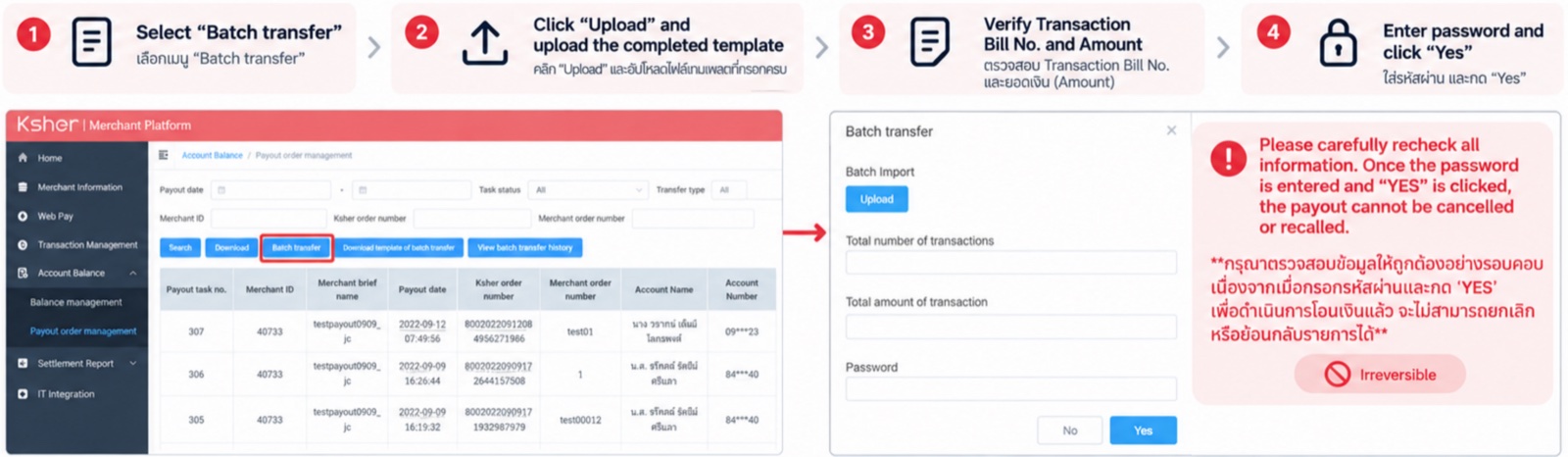
| Please recheck all information carefully. Once the password is entered and Yes is clicked, the payout cannot be cancelled or recalled. |
Insufficient balance error
If the Payout balance is insufficient, the following error appears after confirming:
The balance of the payment account is insufficient, please contact the operator to top up
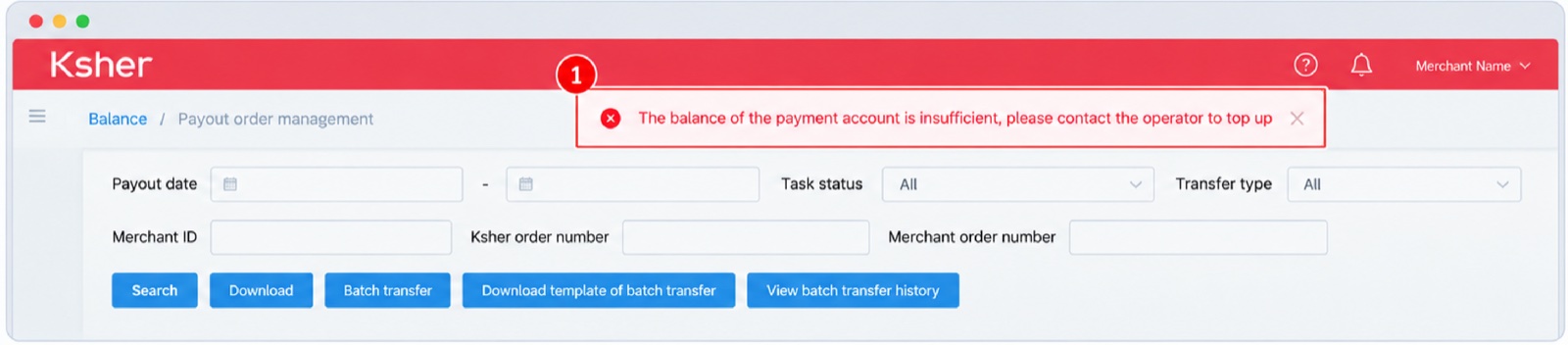
Top up the Payout balance (see 2. Payout Top-Up Process) before submitting the batch again.
Step 4: Batch transfer history
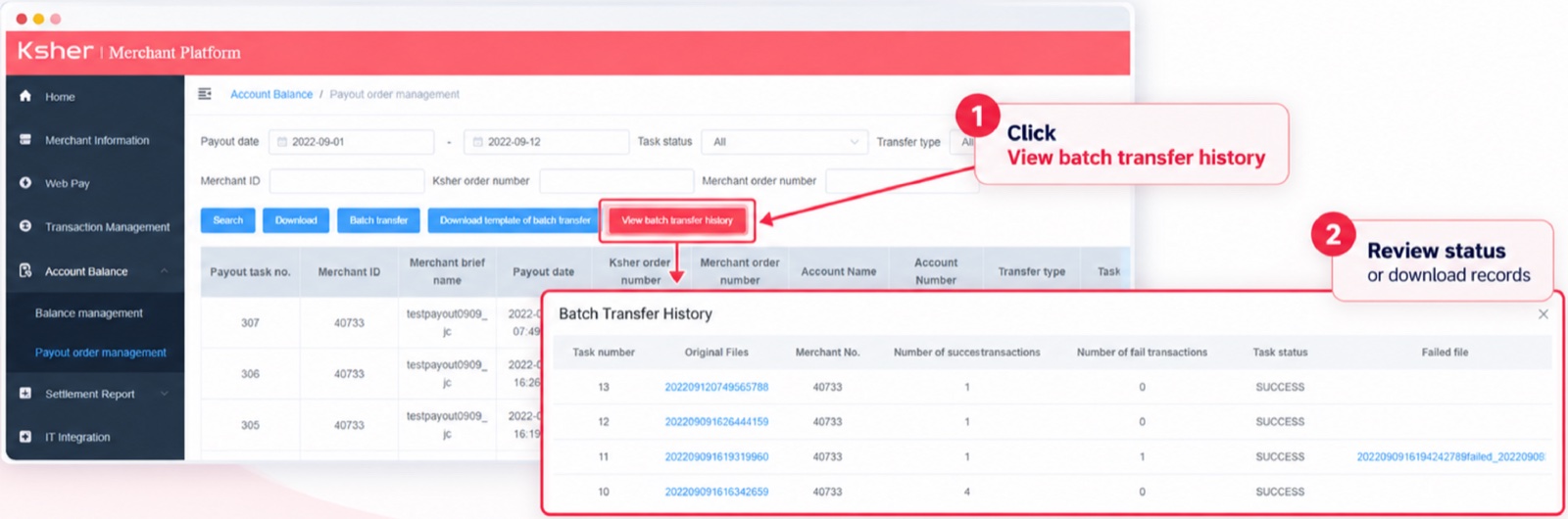
Check the processing status of each uploaded batch and download the related records.
-
Click View batch transfer history.
-
Review the task status (number of successful / failed transactions), or download the original file and the failed file.
Step 5: Check payout details & download voucher
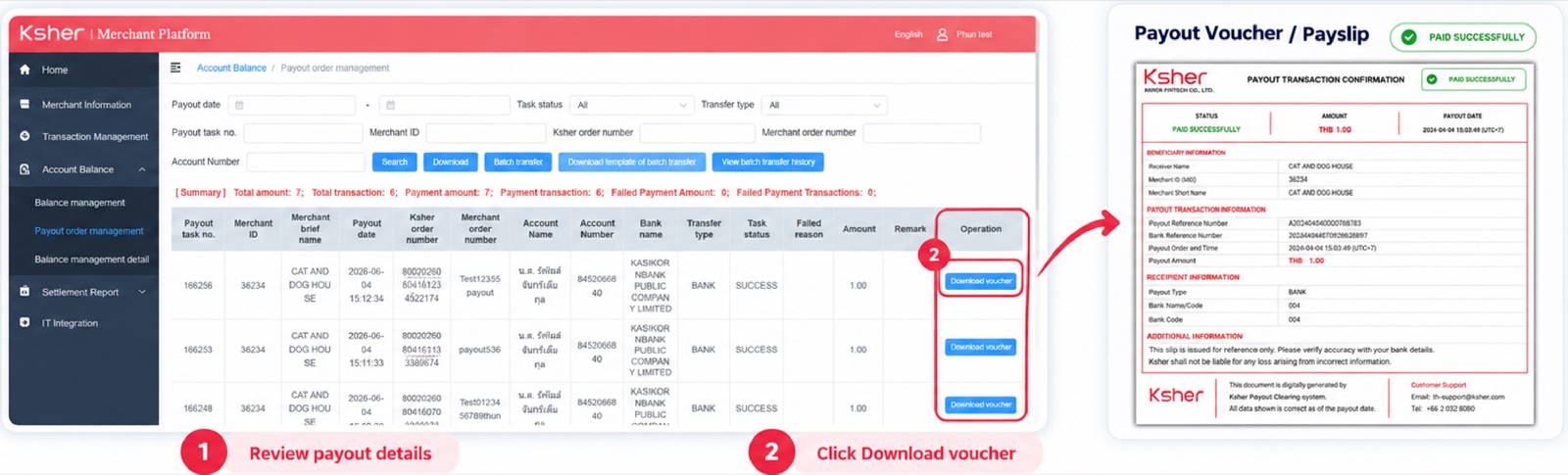
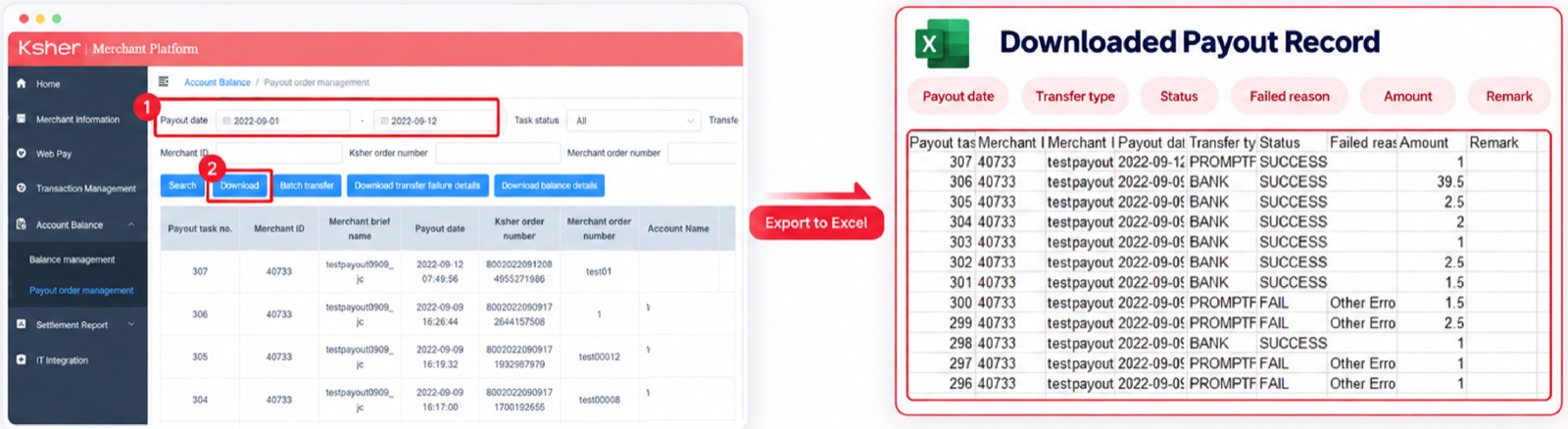
Review payout transaction details directly on the Payout order management page: payout date, Ksher order no., merchant order no., beneficiary account, transfer type, task status, failed reason and amount.
Click Download voucher in the Operation column to download the payment voucher (payslip).
3.3 Balance Management Detail
Review historical account activity, including top-up and payout transactions, fees and running balance, and export the records to Excel for reconciliation.
Go to Account Balance > Balance management detail.
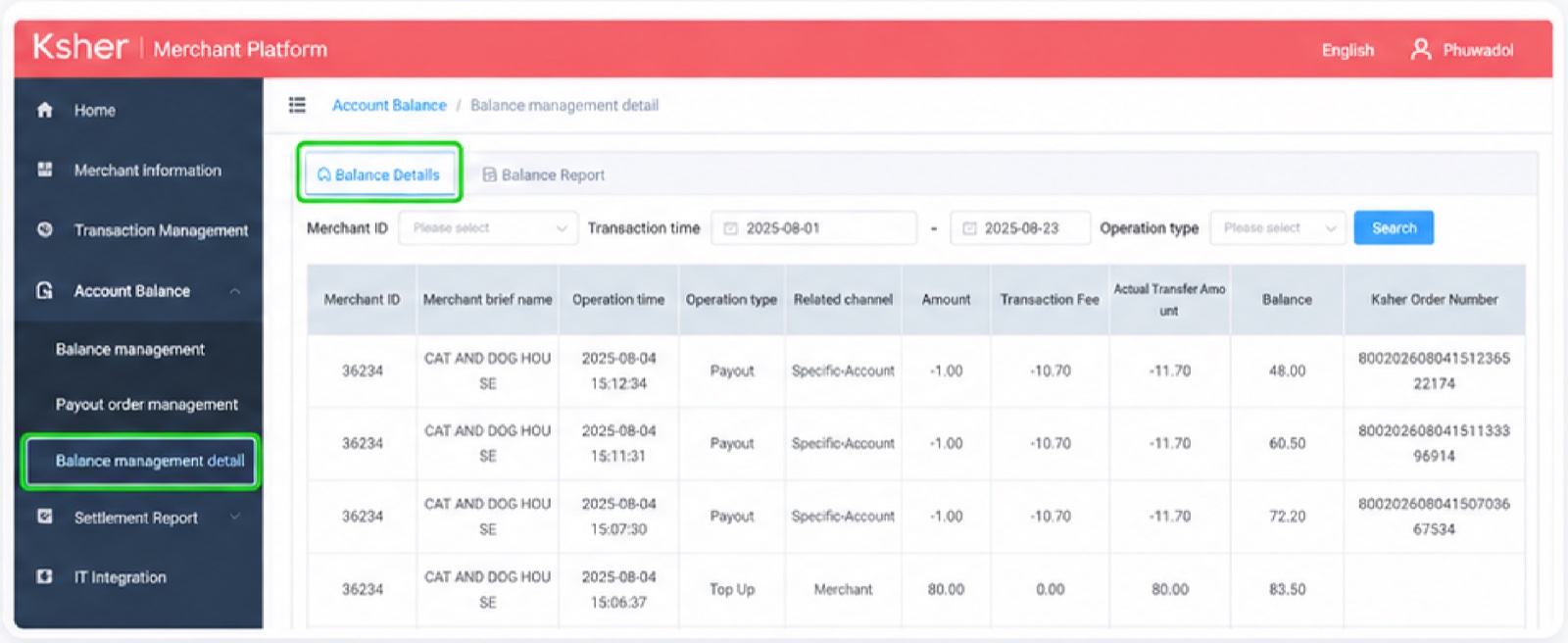
To download the balance records:
-
Select the transaction time range and click Add a download task.
-
Enter a task name and click Confirm.
-
When the task status is Finished, click Download to get the Excel file.

4. Payout Function FAQ
- What is the transaction limit?
-
Minimum 1 THB, maximum 2,000,000 THB per transaction.
- Can a confirmed payout be cancelled?
-
No. Once confirmed with the password, a payout cannot be cancelled or recalled.
- When does the beneficiary receive the funds?
-
Funds are transferred to the beneficiary immediately after confirmation.
- Is there a limit on the number of bills in a batch transfer?
-
There is currently no limit on the number of bills in a batch transfer.
- Which receiving accounts are supported?
-
Thai bank accounts, and PromptPay by national ID or mobile number.
- Is an E-Tax receipt issued?
-
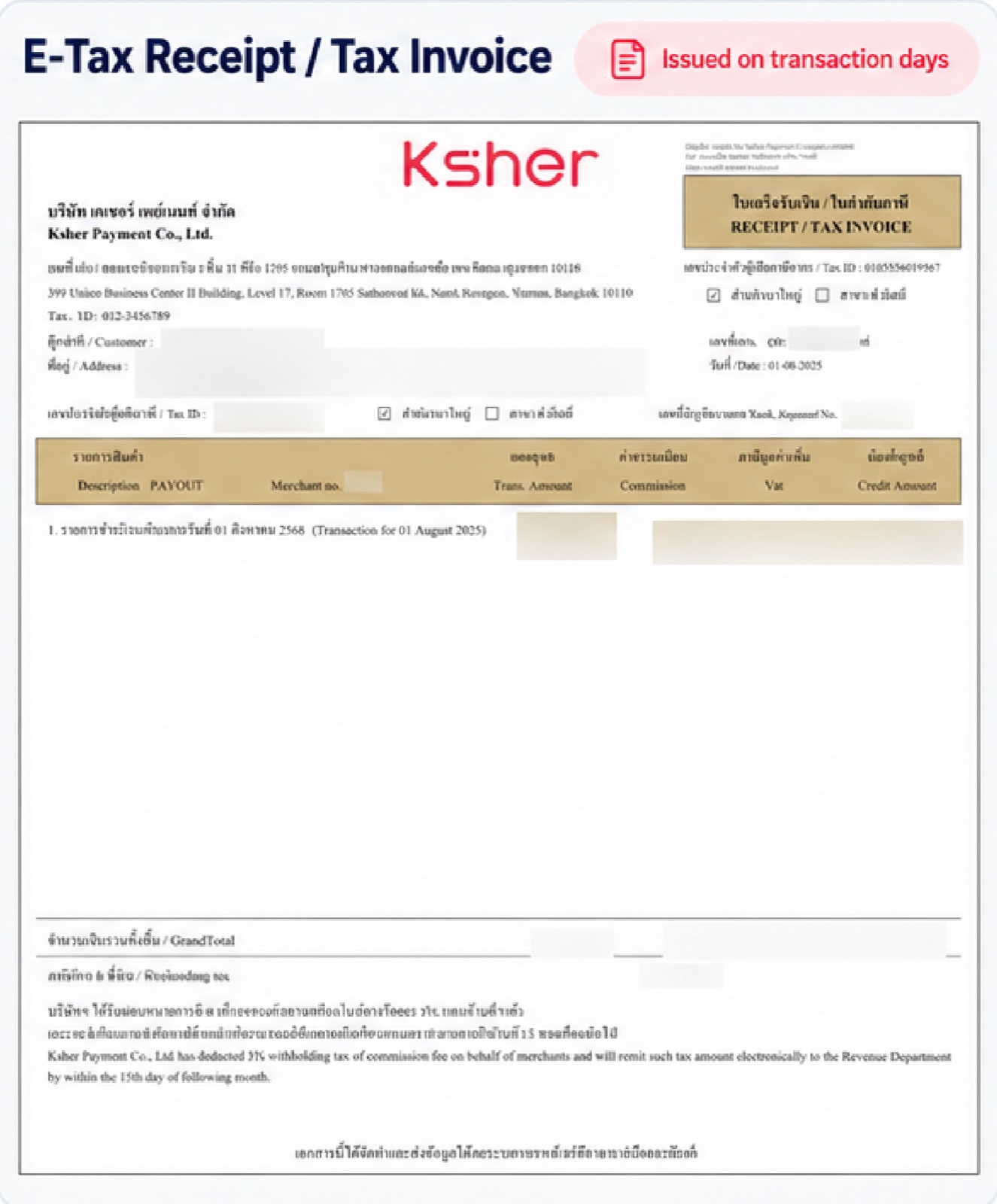
Yes. An E-Tax receipt / tax invoice is issued for the Payout service fee on transaction days.